How to Humanize AI Text Using ezHumanizer
There is no doubt that AI tools like ChatGPT, Gemini, Claude, and others have streamlined our content writing tasks. From writing informational blog posts and articles to drafting marketing descriptions and email copy, AI writing tools can do it all.
However, one common issue is that AI content sounds robotic, repetitive, and overly formal in tone. Because of this, readers often find AI text less engaging and leave it to find natural content with a unique personality. That’s where ezHumanizer comes in. You can use this tool to easily transform AI-generated, robotic drafts into engaging, human-like, and readable writing.
In this blog, you’ll learn how to humanize AI content using ezHumanizer. We'll also walk through a real example of humanized text using the tool.
Before talking about the steps, let’s take a quick look at what ezHumanizer is.
A Brief Introduction to ezHumanizer
ezHumanizer is an AI humanizer tool designed to automatically refine machine-generated or robotic text so it reads as if written by a human. The text humanizer is powered by a fine-tuned AI model that understands the context of your text and makes precise refinements to create natural, human-like output while preserving its original meaning.
Along with its humanization capabilities, ezHumanizer comes with several beneficial features that make it a more convenient option for users of any type:
Simple user interface
Support for multiple languages
Preserves the original meaning of the text
Makes sentence-based changes
Multiple humanizing modes
Fast processing.
Humanize AI text from any source
Also read: ezHumanizer vs QuillBot AI Humanizer to see how ezHumanizer compares with other AI humanizers.
How to Humanize AI Text Using ezHumanizer (Step by Step)
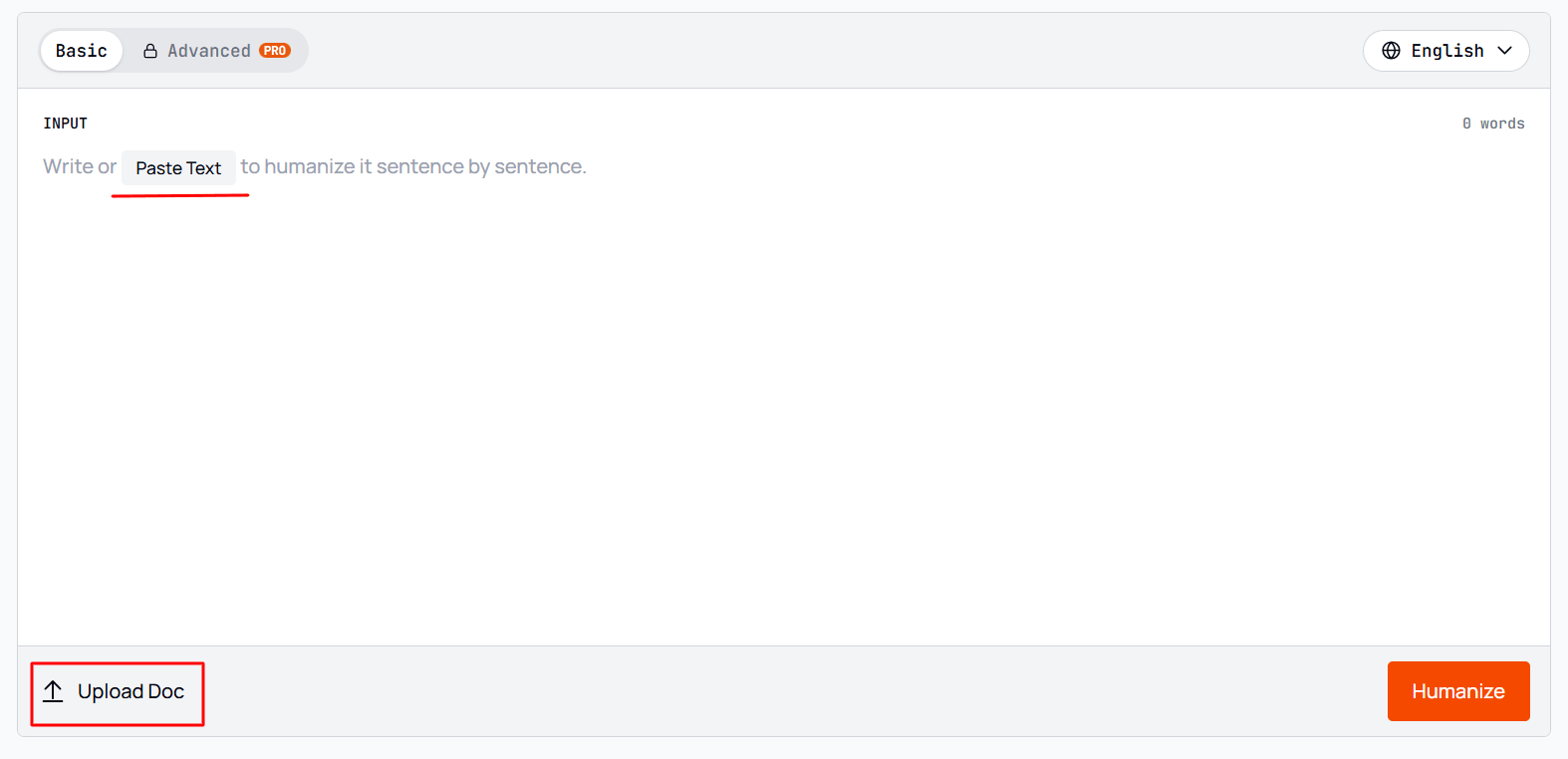
Step 1: Input Your Text into the Tool
Open the AI Humanizer and enter your text. You can type or paste AI-generated content into the input box. Alternatively, the tool provides a file upload option that supports TXT, PDF, and DOCX files.
Here’s the pictorial demonstration of this step:
Step 2: Select a Humanization Mode & Language
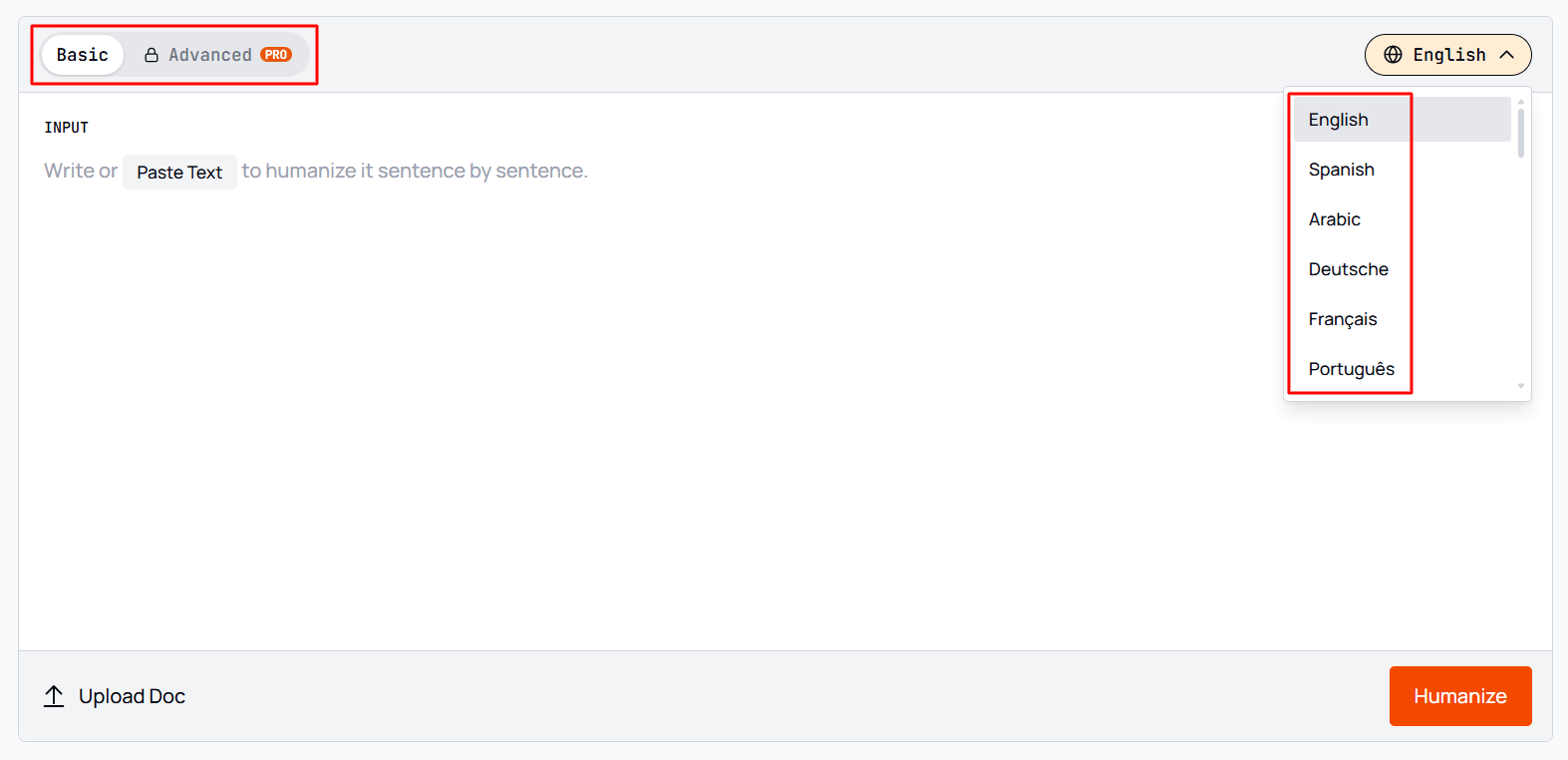
ezHumanizer provides two different modes: Basic and Advanced. Each uses a unique approach to refine your text, allowing users to choose the style that fits their content.
For instance:
Basic (free) mode is suitable for everyday writing tasks.
Advanced (premium) mode is for transforming content into more natural and polished text.
Select a humanization mode that best matches your needs. Then, specify the language of your input text: the AI Humanizer supports a wide range of languages, including English, Spanish, French, Portuguese, Italian, Arabic, and more.
Here’s the demonstration:
Step 3: Click the “Humanize” Button
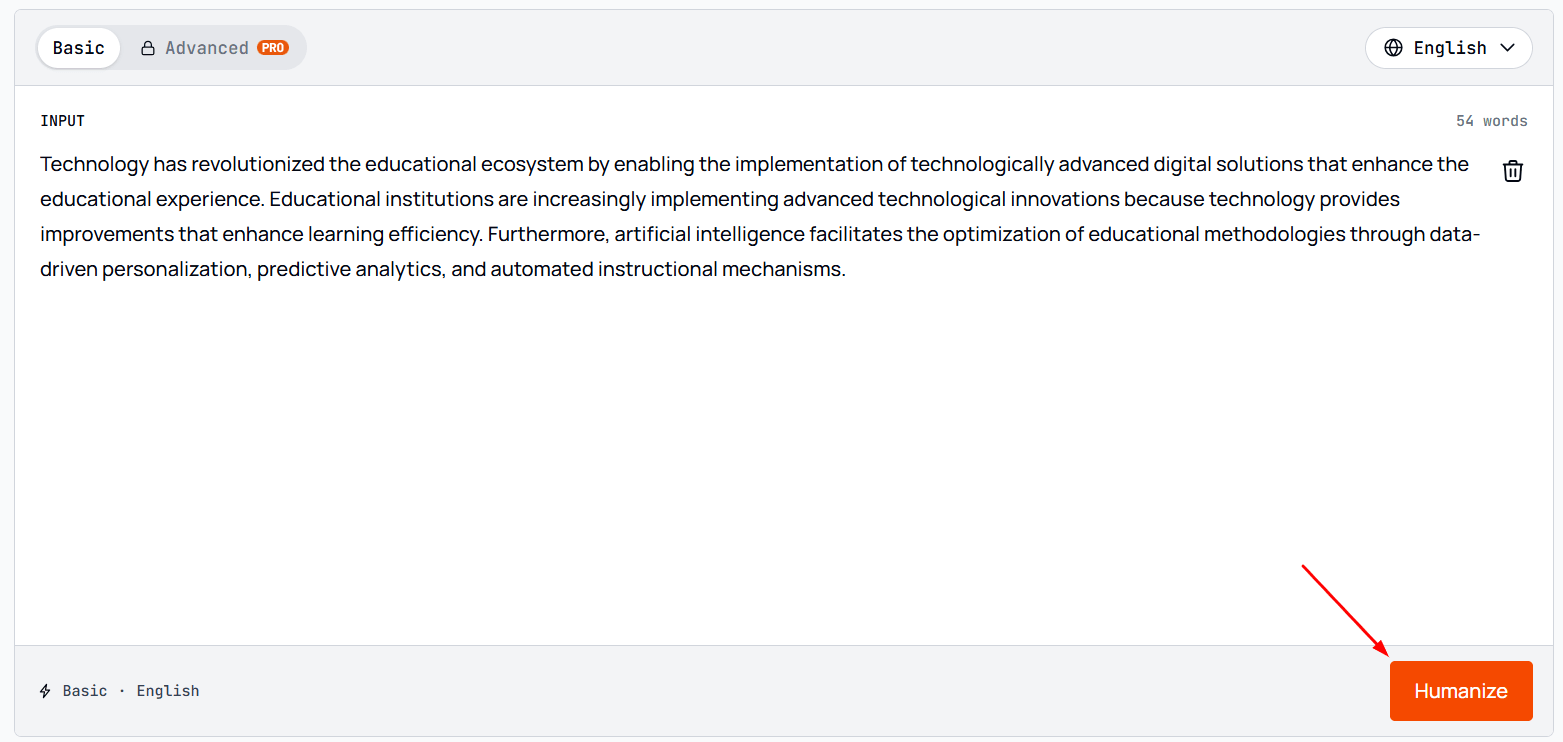
Once you’ve set everything, it’s time to start the process. Hit the “Humanize” button, and ezHumanizer will make AI writing sound natural within a few seconds. The humanized text will appear in the output box.
Step 4: Review the Humanized AI Text
Before using the output, we suggest reading it carefully to ensure it matches your content tone, audience, and purpose. If the initial result is not what you wanted, ezHumanizer lets you generate another version; just click “Re-Humanize” and get a completely different version.
Also, if any of the sentences in the output version are not up to your expectations, ezHumanizer allows you to select and “Rephrase” that exact line on the spot.
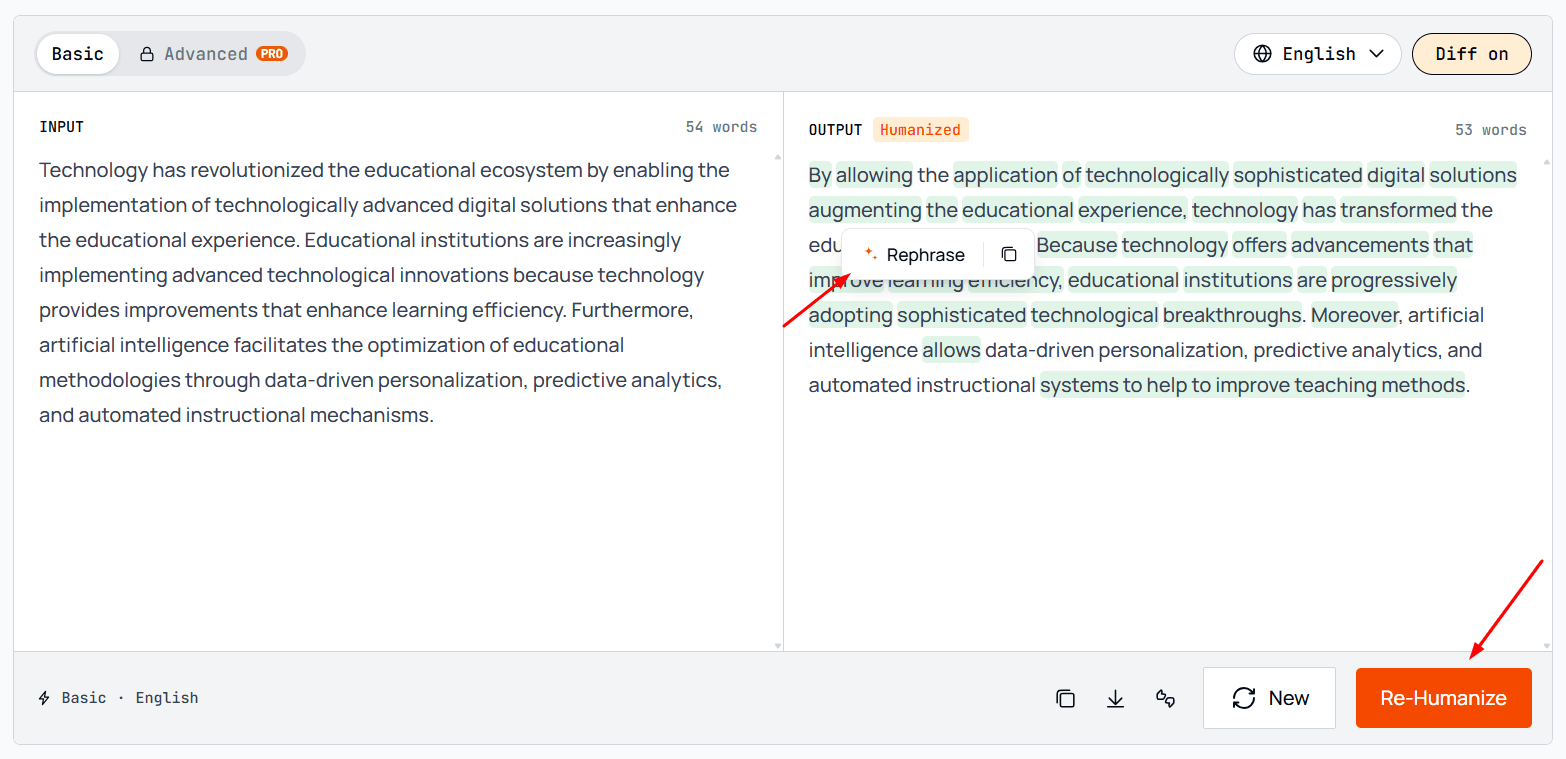
Once you’re satisfied with the result, you can copy it to the clipboard or download it as a file. That’s it; you have successfully humanized AI text using ezHumanizer.
Before & After Example: See ezHumanizer In Action
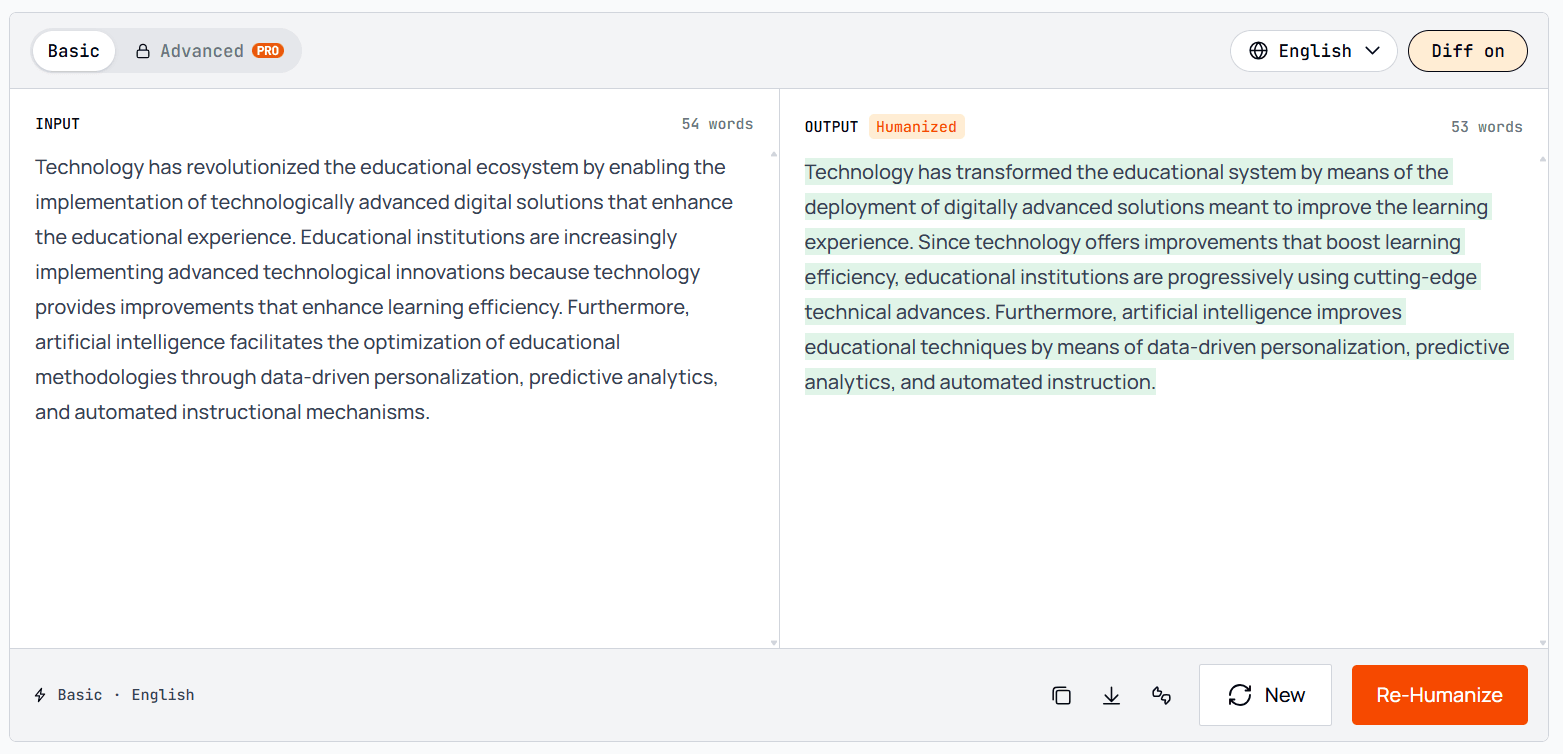
To demonstrate the working of ezHumanizer, we fed AI-generated text from Claude into it, chose the Basic mode, and ran it. The AI humanizer took no time to convert our text into human-like, engaging output.
Let’s compare both versions and see what changes were made by the tool.
Before (AI-Generated Text)
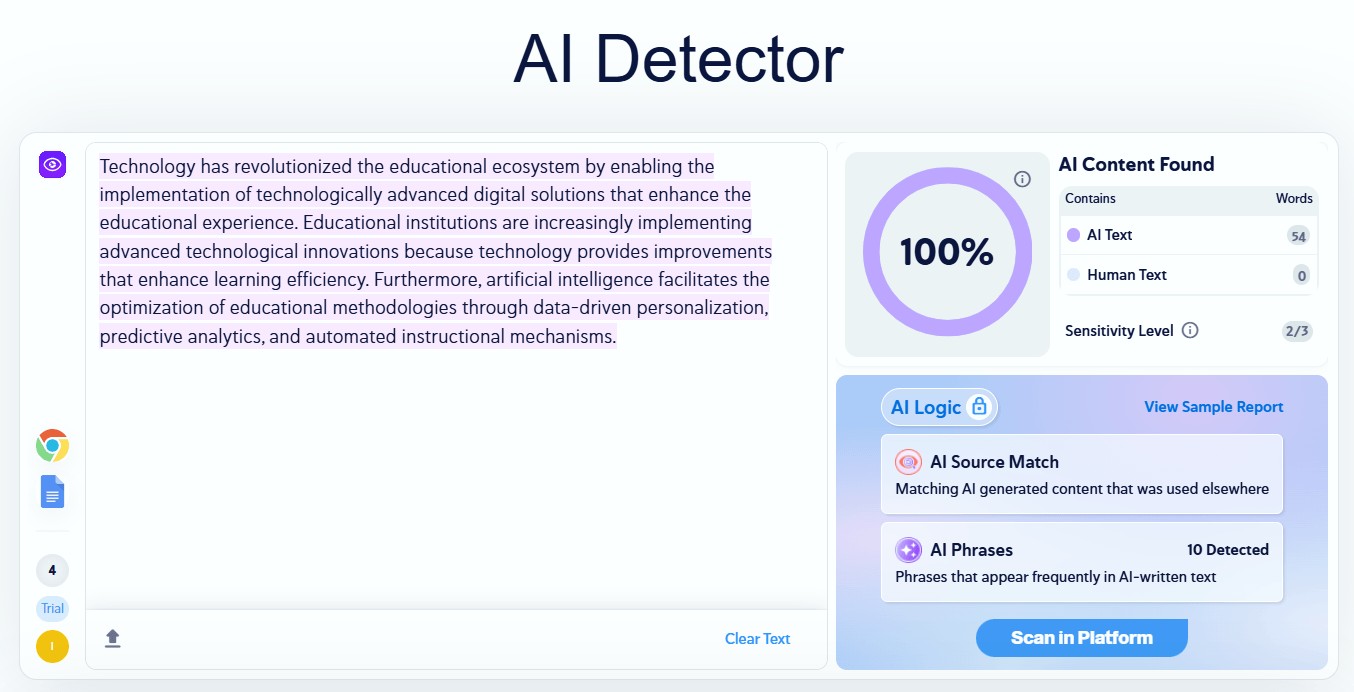
Technology has revolutionized the educational ecosystem by enabling the implementation of technologically advanced digital solutions that enhance the educational experience. Educational institutions are increasingly implementing advanced technological innovations because technology provides improvements that enhance learning efficiency. Furthermore, artificial intelligence facilitates the optimization of educational methodologies through data-driven personalization, predictive analytics, and automated instructional mechanisms. |
To verify, we passed the AI-generated text through Copyleaks (AI detector), and it flagged our text as 100% AI. As shown in the image below;
After (Humanized AI Text by ezHumanizer)
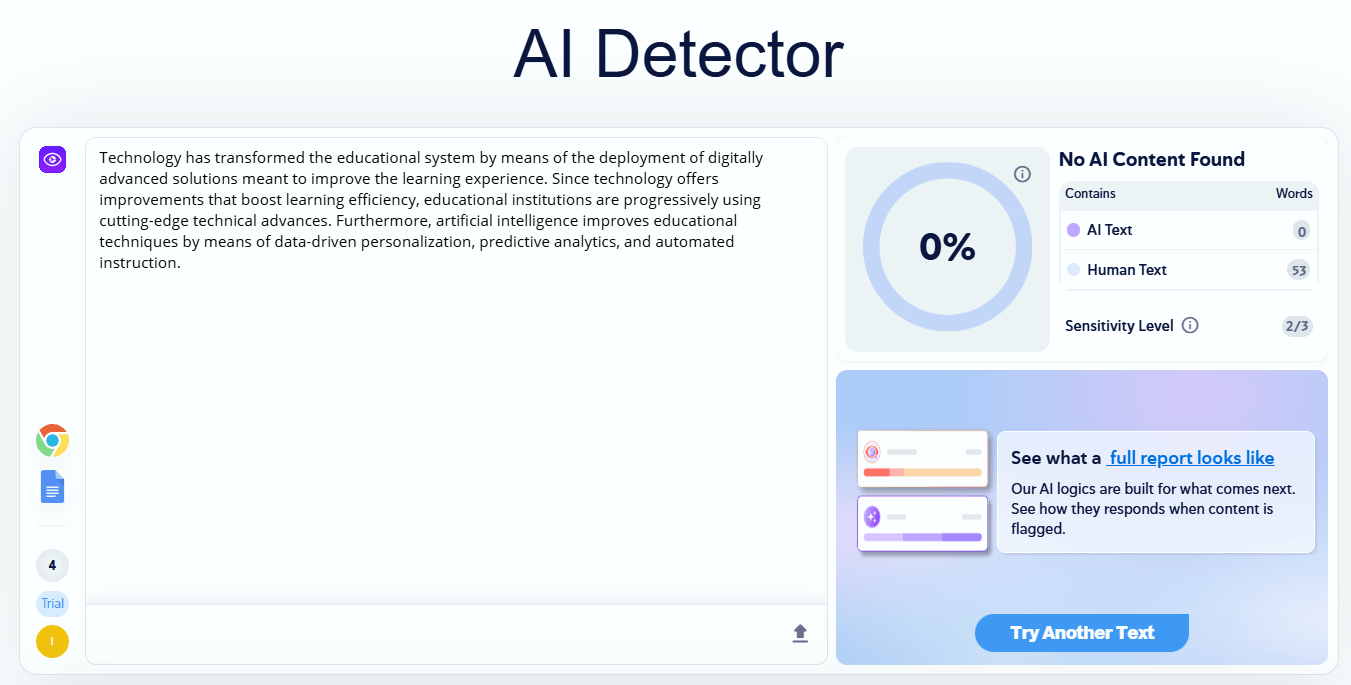
Technology has transformed the educational system by means of the deployment of digitally advanced solutions meant to improve the learning experience. Since technology offers improvements that boost learning efficiency, educational institutions are progressively using cutting-edge technical advances. Furthermore, artificial intelligence improves educational techniques by means of data-driven personalization, predictive analytics, and automated instruction. |
Pictorial Demo:
Now, we analyzed the humanized version with the same Copyleaks AI Detector. The result was up to our expectations; the tool reported “No AI Content Found”, indicating that the text appeared more natural and human-like.
Here’s a demonstration;
What ezHumanizer Changed?
When both versions are compared, we can see significant improvements in the naturalized text:
The overall language is clearer and easier to understand.
Repetitive phrases and redundancies are removed.
The jargon and robotic phrases are replaced with natural and commonly used ones.
The sentence structures are refined to make the content flow more naturally.
The actual context and meaning remain the same, while making the content more compelling.
Tips for Better Humanization Results
Below, we list some practical tips that you can follow to get the most out of ezHumanizer:
You should always proofread the output carefully and ensure that it preserves the actual meaning.
If you have multiple AI-generated content drafts, refine one draft or paragraph at a time. Doing this will help the tool maintain context and refine overall quality.
Choose the humanization mode that best fits your needs
In the output box, toggle the Diff option to easily see the changes the tool made.
Always read the humanized content before publishing it. We suggest verifying technical details, facts, and brand guidelines for accuracy.
If the first output is not exactly up to your standard or needs, re-humanize it until you get what you want.
It is also recommended to add your own voice to the output to make it more authentic and natural.
Final Thoughts
Humanizing AI text is no longer a tricky task; anyone can do it with ease with the help of the AI Humanizer tool. In this blog, we comprehensively explained a step-by-step process of humanizing AI content using ezHumanizer. The sentence-by-sentence check, diff view, re-humanize option, and selective line rephrase make the process simple and precise.
No matter what type of content you have, ezHumanizer is efficient at humanizing it in seconds. Now, it’s your turn to transform your AI content into human-like writing by following the above-listed steps and helpful tips.
FAQs
Can I use ezHumanizer for free?
Yes! It is available in a free version with access to its Basic mode. Users who need advanced features can upgrade to the premium version.
What types of content can I humanize with ezHumanizer?
ezHumanizer can humanize articles, blog posts, essays, professional messages, product descriptions, and other AI-generated content.
Can I edit the humanized results?
Yes. ezHumanizer provides a “Re-Humanize” option to create a new version if you’re not satisfied with the first output. Plus, it lets you “Rephrase” individual sentences to better match your preferences.